Free tool
Mermaid flowchart editor with syntax examples
Write or paste a Mermaid flowchart, check each line against the syntax examples on this page, and select Visualize to see the result as a diagram. Change a bracket or an arrow, visualize again and compare. When the flowchart looks right, open it in Archboard and move the shapes by hand.
Example output
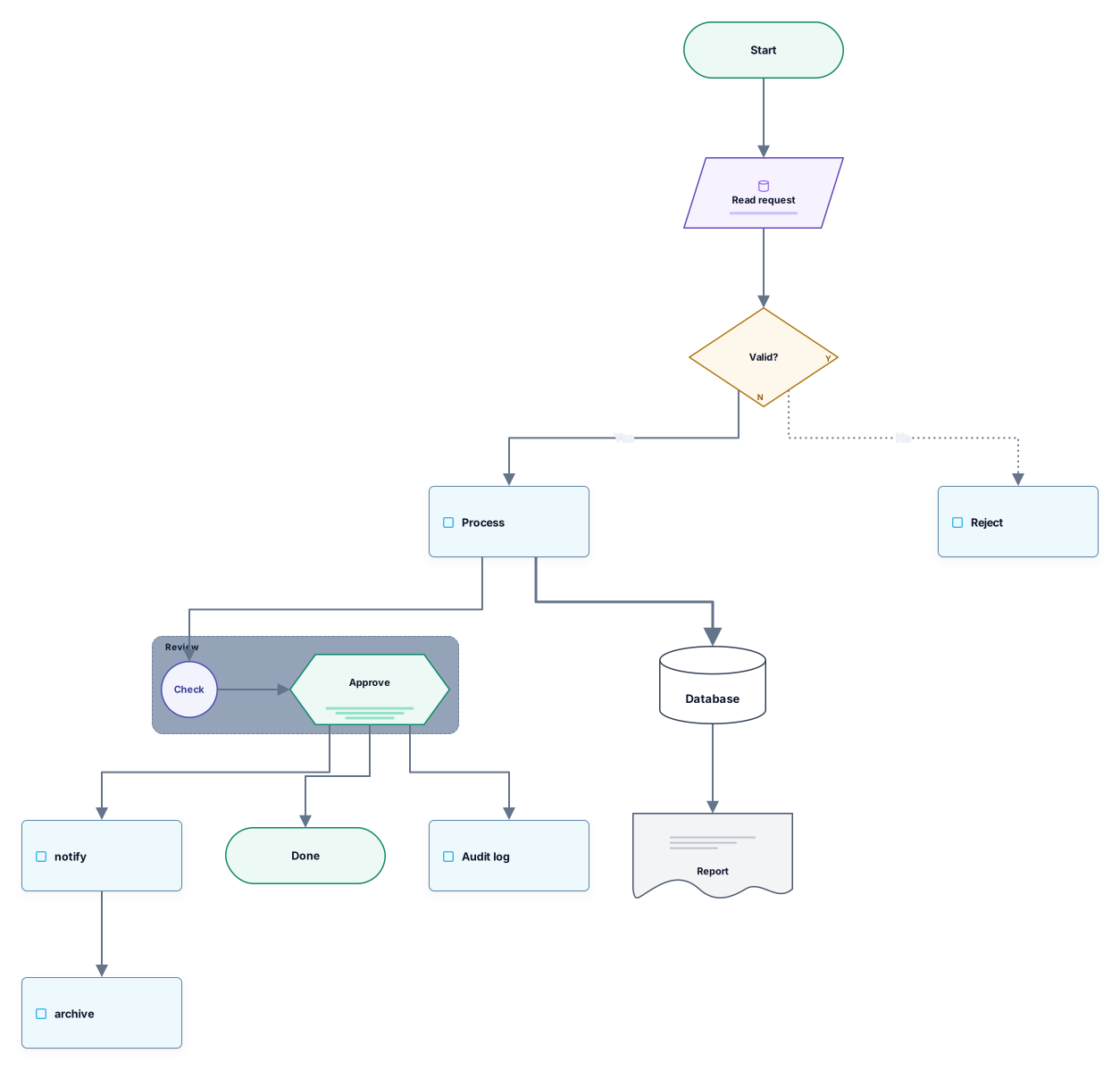
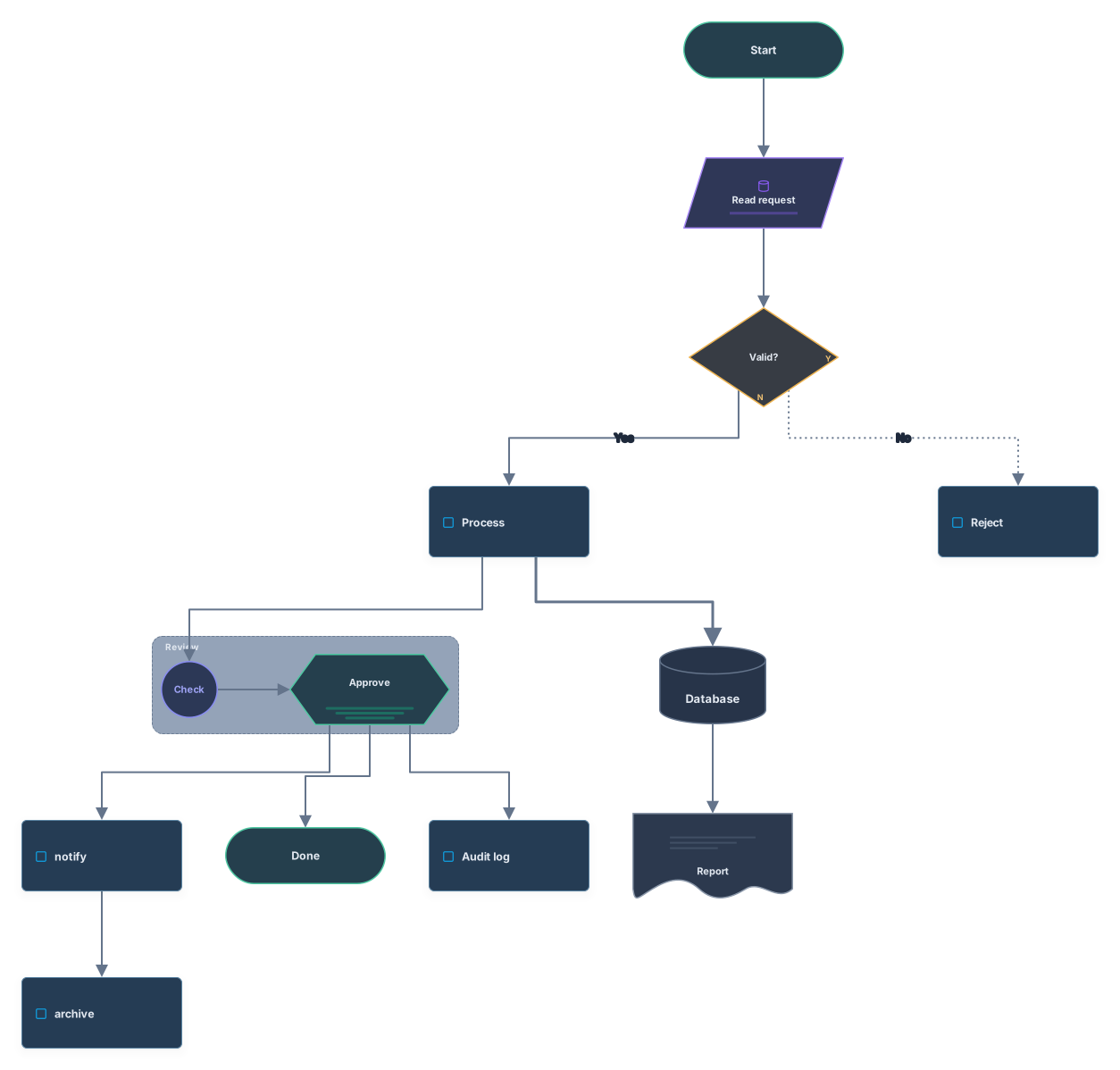
How it works
Write or paste a flowchart
Start from a sample or paste your own Mermaid code. Edit any line in the box; nothing is read until you ask.
Visualize and compare
The preview redraws the flowchart. Download it as SVG or PNG, or change the code and visualize again.
Open it in Archboard
Save it as a new diagram to drag shapes, add notes and share a link. Signing up takes a Google or GitHub account.
Mermaid flowchart syntax at a glance
Each row shows how a piece of flowchart code is written and what it turns into:
flowchart TD · LR- The first line sets the flow: TD or TB runs top to bottom, LR left to right. A subgraph can set its own direction inside.
[ ] ( ) ([ ]) { } {{ }} [/ /] [( )] (( ))- The brackets around a label pick the shape: square for a process, round for soft corners, stadium for start and end, curly braces for a decision, double curly braces for a hexagon, slashes for data, cylinder brackets for a database and double parentheses for a circle.
@{ shape: doc }- The newer shape syntax names the shape after the node id, here a document, and carries the label in the same settings block.
--> · -.-> · ==>- Two dashes and an arrowhead draw a solid arrow, a dot in the middle makes it dotted, and equals signs make it thick.
-->|text|- Text between two vertical bars right after the arrow becomes the label on that arrow, such as Yes or No after a decision.
A --> B --> C · A --> B & C- Several arrows can follow each other on one line, and an ampersand sends one arrow to two or more nodes at once.
subgraph … end- A subgraph line with an id and a title opens a frame; every node written before the matching end line sits inside it.
%% comment- A line that starts with two percent signs is a comment: it is skipped and never turns into a node.
Edit, visualize, compare
Change a line in the box, select Visualize, and the preview redraws with the new shapes and arrows. If a line has a mistake, nothing is drawn and the message names the line, so you can jump to it and fix it. Styling lines are read past and counted in the warnings, which keeps the focus on structure while you learn the syntax.
Limits of the flowchart editor
- Code completion or syntax colors: the input is a plain text box, so the syntax rows on this page are your reference.
- An exact match for every documented shape: a few, such as the divided and lined rectangles, the lightning bolt and the right brace, are still drawn with the closest flowchart shape, and the warnings say how many.
- Colors from classDef, style and linkStyle lines: they are skipped here, and you restyle shapes in Archboard instead.
- Writing changes back to code: once the flowchart is in Archboard, moving or restyling shapes doesn’t change your Mermaid text.
Flowchart syntax questions
What is the difference between graph and flowchart?
Both start a flowchart and are read the same way here, with the same shapes, arrows and subgraphs. graph is the older keyword and flowchart the current one; flowchart-elk is read as a flowchart too.
What happens when my flowchart has a syntax error?
Nothing is drawn, and the message shows the line where reading stopped. Jump to that line from the message, fix the bracket or the arrow, and select Visualize again.
Can I drag shapes around instead of writing code?
Not in this preview. Select Open in Archboard and the flowchart becomes a diagram where you drag shapes, reconnect arrows, change colors and add notes. Your Mermaid code stays as it was.
What happens when I open the diagram in Archboard?
The preview on this page isn’t saved. When you select Open in Archboard, the diagram you see, with its shapes, labels and connections, is saved as a new diagram in your workspace, where you can rearrange, annotate, share or export it. It’s a starting point: later changes to your Mermaid code don’t update it.
Is the Mermaid flowchart editor free?
Yes. Writing Mermaid code and previewing the flowchart needs no account. Opening it in Archboard needs a free account.
Open a canvas in a minute
Sign in with Google or GitHub. Free for a single seat. Upgrade when the team joins.