Free tool
draw.io viewer: open .drawio and .xml files
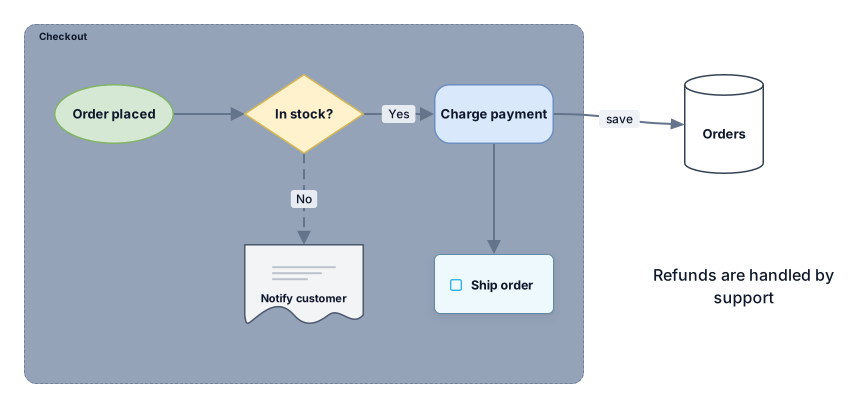
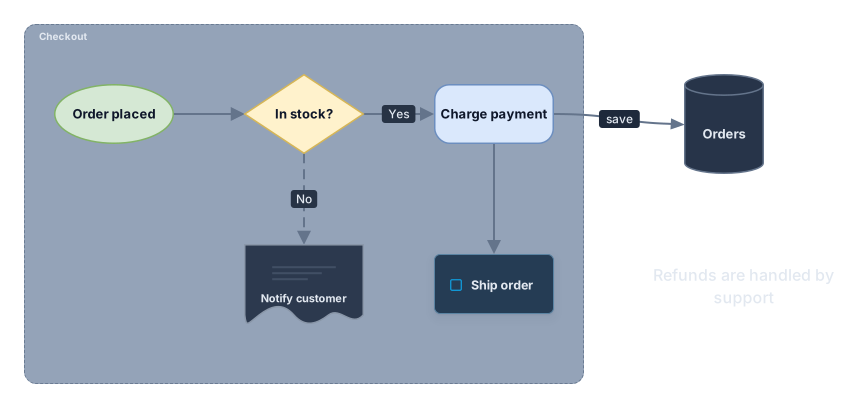
Drop a .drawio or .xml file saved from draw.io or diagrams.net and every page opens as an editable diagram: shapes, labels, containers, connectors and cloud icons stay where you put them. Download any page as SVG or PNG, or open it in Archboard and keep working on it. No account and no draw.io install needed.
Example output
How it works
Drop your draw.io file
Drag a .drawio or .xml file onto the drop area or choose it from your computer. Compressed and plain files both open.
Pick a page
A file with several pages gets a page list. The first page is drawn right away; choosing another one redraws the preview.
Download or open it
Download the page as SVG or PNG, or open it in Archboard to edit and share it. Signing up takes a Google or GitHub account.
What the draw.io viewer keeps
- Rectangles, rounded boxes, ellipses, diamonds, cylinders, hexagons, clouds and the flowchart shapes become the matching Archboard shapes, at the same position and size.
- Connectors between two shapes, with their labels and arrowheads. Orthogonal and elbow connectors stay orthogonal, curved ones stay curved.
- Swimlanes, groups and containers that hold shapes become frames, so the nesting you built in draw.io carries over.
- AWS, Azure, Google Cloud and Kubernetes icons from the draw.io libraries become typed cards; AWS VPC and subnet groups become network frames.
- Every page of the file under its own name. Hidden layers are left out and counted in the notes.
- Label text, including formatted HTML labels, which are shown as plain text. Fill, line and text colors are kept when the file sets them.
Positions come from the file
Nothing is rearranged: each shape keeps the place and size it has in draw.io. Cloud and Kubernetes cards need more room than a small icon, so the gaps between those icons are widened to keep the cards apart. Text-only shapes and labels without a border become plain text on the canvas.
What the draw.io viewer leaves out
- Embedded pictures and image shapes. A picture that has a label becomes a dashed placeholder; one without a label is left out.
- Rotation. Rotated shapes are drawn upright in the same place.
- Hand-placed connector bends. Archboard routes each connector itself between the same two shapes.
- PNG and SVG exports from draw.io, even when they carry the diagram inside. Open the .drawio file instead.
- Shadows, gradients, the sketch style and custom fonts. Shapes use the plain Archboard look.
Shapes without a direct match
A library shape that has no Archboard counterpart, such as a network device or a mockup control, is drawn as a box with its label, and a cloud icon without a typed card becomes a generic cloud card. Nothing disappears without a trace: the notes next to the drop area count every approximated shape, skipped image and connector left out.
draw.io viewer questions
Does it open compressed .drawio files?
Yes. draw.io can save page content compressed or as readable XML, and both open here. Files exported as .xml from draw.io or diagrams.net work the same way, and so does a file that holds a bare mxGraphModel.
Do I need draw.io or diagrams.net installed?
No. The viewer reads the file format itself, so a .drawio file sent by a colleague opens here without the draw.io desktop app or a diagrams.net account.
Can I edit the diagram after opening it?
Not on this page: here you look at it and download it. Open it in Archboard and the page becomes an ordinary Archboard diagram where you can move shapes, add connectors, leave comments and share a link.
What happens when I open the diagram in Archboard?
The preview isn’t saved. When you select Open in Archboard, the page you are looking at is saved as a new diagram in your workspace. The .drawio file itself isn’t stored, so keep it if you need the original.
Is the draw.io viewer free?
Yes. Opening files, switching pages and downloading SVG or PNG need no account. Opening the diagram in Archboard needs a free account.
Open a canvas in a minute
Sign in with Google or GitHub. Free for a single seat. Upgrade when the team joins.