Free tool
Terraform to diagram
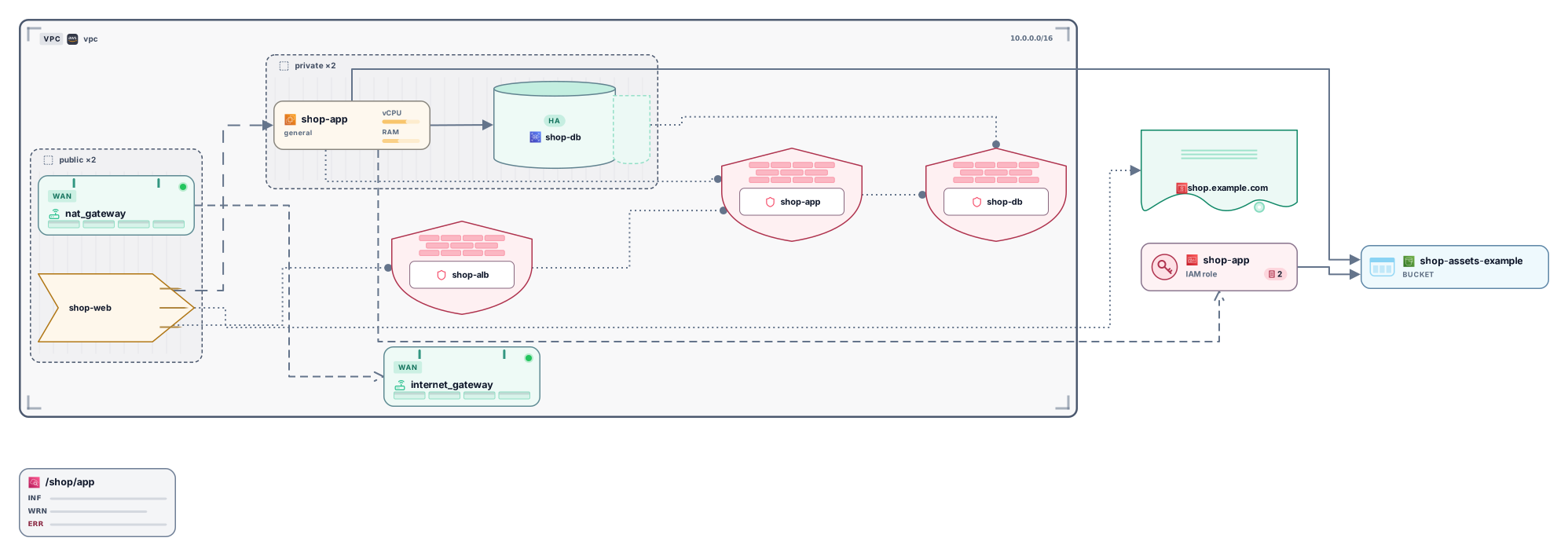
Paste Terraform .tf files or terraform show -json output and get an editable architecture diagram: VPCs, subnets and resource groups become frames, resources become cards, and references become connections. No account needed to try it.
Example output
How it works
Paste or drop your Terraform
One .tf file, several files from the same module, or the JSON that terraform show -json prints for a saved plan or for your state. No terraform init needed.
See the architecture
Each resource becomes a card for its kind, such as compute, database or queue. Networks, subnets and resource groups become frames around the resources placed in them.
Open it in Archboard
Save it as a new diagram to rearrange cards, add notes, share a link, or export SVG and PNG. Signing up takes a Google or GitHub account.
What’s drawn from Terraform code
The diagram is built from these blocks and arguments in your configuration:
resourcedataResources as cards for their type. Glue resources such as aws_lb_target_group_attachment become connections, settings such as aws_s3_bucket_versioning fold into their bucket, and data sources are skipped unless resources sit inside them.
depends_onA connection for each reference from one resource to another, such as aws_iam_role.app.arn, including references inside strings, heredocs and locals. depends_on adds a dashed connection, unless a reference already links the two resources or the target is a hidden helper such as time_sleep.
vpc_idsubnet_idPlacement through vpc_id and subnet_id: a resource in one subnet sits inside that subnet, one spread over several subnets of a VPC sits in the VPC frame, and Azure resources sit in their resource group.
modulesourceEach module block as a card. Well-known registry modules such as terraform-aws-modules/vpc/aws, eks and rds become the network frame, cluster or database they create, and resources using the VPC module’s subnets are placed inside it.
resource_changesWith plan JSON, each resource card shows what the plan will do to it: + create, ~ update, − delete or ± replace. Unchanged resources carry no mark, and neither do frames such as VPCs and subnets or settings folded into a card.
awsazurermgoogleAWS, Azure and Google Cloud resources, mixed in one diagram when you use several providers. Types without a dedicated card appear as generic cards that show the resource type.
Terraform plan visualizer
Plan JSON gives the most complete diagram: count and for_each become real instance counts, modules open up into their resources, and resource cards are marked with their planned change. Run these two commands where you usually run terraform plan, then paste the JSON:
Creates a plan and saves it to plan.out without applying anything.
terraform plan -out plan.outPrints the saved plan as JSON. Paste the output, or redirect it to plan.json and drop that file here.
terraform show -json plan.out
What a Terraform diagram leaves out
- Variable and local values, .tfvars files, tags, user_data and other attribute values. Cards are labeled with literal names such as bucket or function_name, or with the resource name from your code.
- Expanded count and for_each in .tf files: the configuration isn’t evaluated, so a resource with count = 3 is one card marked ×3, and one with for_each is marked ×N. Paste plan JSON for real instance counts.
- The contents of remote modules: registry and Git modules aren’t downloaded. A module that isn’t well known stays one card, and plan JSON shows the resources inside it.
- Live cloud state, drift, costs, or which services call each other at runtime. The diagram shows how your configuration wires resources together, not traffic.
Questions about Terraform diagrams
Should I paste .tf files or plan JSON?
.tf files are the quickest way to see the shape of your code, and nothing has to run first. Plan JSON is more complete because Terraform has already resolved it: counts are real, modules are expanded, and resource cards show their planned change. Use .tf for a quick look and plan JSON when you review a change.
Can I add several .tf files at once?
Yes. Drop several .tf files, or a whole module folder, and they’re read together, the way Terraform reads every .tf file in a directory. You can also paste the files one after another into the box. JSON input, such as a plan or a state file, is read one file at a time.
Which cloud providers are supported?
AWS, Azure and Google Cloud. Common resource types map to cards such as compute, function, database, queue, load balancer or DNS, and networks, subnets and resource groups become frames. Kubernetes and Helm resources appear as generic cards, and utility providers such as random, time and null_resource are hidden.
Can I visualize Terraform state?
Yes. Paste terraform show -json output for your current state, or drop a raw terraform.tfstate file. The diagram shows resource types, names and dependencies, and a name marked sensitive falls back to the resource name from your code. A .tfvars file isn’t accepted, because it only holds variable values.
What happens when I open the diagram in Archboard?
The preview on this page isn’t saved. When you select Open in Archboard, the diagram you see, with its cards, frames, names and connections, is saved as a new diagram in your workspace, where you can rearrange, annotate, share or export it. It’s a starting point: later changes to your Terraform code don’t update it.
Is the Terraform visualizer free?
Yes. Pasting Terraform and viewing the diagram needs no account. Opening it in Archboard needs a free account.
Open a canvas in a minute
Sign in with Google or GitHub. Free for a single seat. Upgrade when the team joins.