Free tool
GitHub Actions visualizer
Paste a workflow file and get an editable GitHub Actions diagram of its triggers, jobs, needs dependencies, matrix sizes, environments and service containers, before the workflow ever runs. No account needed to try it.
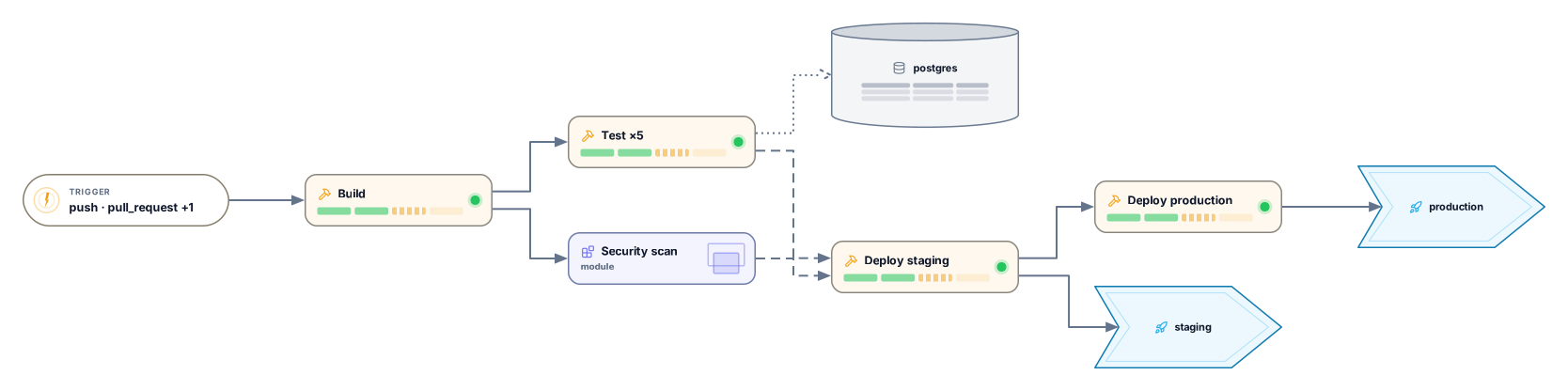
Example output
How it works
Paste a workflow file
Any YAML file from .github/workflows, such as ci.yml or deploy.yml. To compare several workflows, paste them together with a --- line between them.
See the pipeline
A trigger card starts the flow, jobs follow from left to right in the order set by needs, and each job is linked to the environments it deploys to and the service containers it uses.
Open it in Archboard
Save it as a new diagram to rearrange jobs, add notes, share a link, or export SVG and PNG. Signing up takes a Google or GitHub account.
What’s drawn from a workflow file
These workflow keys shape the diagram:
onOne trigger card per workflow, labeled with its first two events and a count of the rest, such as push · pull_request +1, and linked to every job that starts first. workflow_call and workflow_run get cards of their own.
jobsEach job as a card with its name, or its job ID when the name contains an expression. Steps are counted rather than drawn, and jobs with an if condition get dashed incoming lines.
needsA connection from each job listed under needs to the job that waits for it, so you can read the order a run follows. Unknown job IDs and cycles show up as warnings.
strategy.matrixA matrix job stays one card marked with the number of jobs it creates, such as ×6, counted the way GitHub expands it, with include and exclude applied. A matrix built from an expression shows ×?.
environmentEach deployment environment, such as staging or production, as its own card, connected from the jobs that deploy to it.
servicesService containers as cards attached to their job: postgres, redis and mongo images get matching database cards, and any other image a container card.
usesA job that uses a reusable workflow is one card showing its name or the workflow path, connected through needs like any other job.
What a workflow diagram leaves out
- Individual steps, their run scripts and the actions they use: steps are only counted.
- Run results: whether a run passed or failed, how long jobs took, and their logs. The diagram shows the workflow as written.
- The jobs inside a reusable workflow, whether it lives in the same repository or another one: its file isn’t fetched, so it stays one card.
- The result of if conditions and expressions: a job is drawn even when its condition would skip it, and env, secrets and with inputs aren’t read.
GitHub Actions visualizer questions
Can I visualize several workflows at once?
Yes. Paste the workflow files one after another with a --- line between them. Each workflow is drawn in its own frame with its own trigger card, and a workflow_run trigger names the workflow it waits for.
How are matrix jobs shown?
As one card with ×N, where N is the number of jobs the matrix creates after exclude and include are applied, up to GitHub’s limit of 256. When the matrix comes from an expression such as fromJSON, the count can’t be known before a run, so the card shows ×?.
Does it support reusable workflows?
Yes. A job with uses at the job level becomes one reusable workflow card, and needs connect it like any other job. Its own jobs aren’t expanded, because they live in another file. Paste that workflow on its own to draw it: its workflow_call trigger gets a card of its own.
What happens when I open the diagram in Archboard?
The preview on this page isn’t saved. When you select Open in Archboard, the diagram you see, with its trigger, jobs, environments and connections, is saved as a new diagram in your workspace, where you can rearrange, annotate, share or export it. It’s a starting point: later changes to your workflow file don’t update it.
Is the GitHub Actions visualizer free?
Yes. No account is required to paste a workflow and view the diagram. Opening it in Archboard takes a free account.
Open a canvas in a minute
Sign in with Google or GitHub. Free for a single seat. Upgrade when the team joins.