Use case
Org chart maker
Add a report, a peer, or a manager in one click and the chart lays itself out. Your org chart stays tidy as the team changes.
Scenario
An operations lead needs an up-to-date org chart for the onboarding handbook: a CEO, three department heads, their teams, and one open engineering role that recruiting wants to show candidates.
Each person is a card with name, title, department, and location; departments get their own color, and open positions are dashed cards marked Open. Drag a person onto someone else to change their manager. Share a branded public link or export SVG/PNG; Pro adds embed and watermark-free PDF/JPEG.
What you draw
Org chart maker
- A card for each person with name, title, department, and location
- Reporting lines that the chart lays out from top to bottom
- Department colors, so each team stands out at a glance
- Open positions as dashed cards marked Open
- Dotted lines for a second, project or matrix manager
- A compact layout when a manager has many direct reports
Why Archboard
Archboard lays the chart out for you: adding, moving, or removing a person re-arranges the tree in one undo step, so you never nudge boxes into line by hand. The chart is a structured diagram that autosaves with revisions and sits on the same canvas as your process and planning diagrams.
Packs on this canvas
Org chart · Core
Every built-in pack is on Free (3 diagrams, 15 diagram nodes + 150 notes, text, stickers & mind map topics each, branded public share, live editing with your AI agents). Pro adds unlimited diagrams and nodes, seats for teammates to edit live, embed, and watermark-free export ($10/seat/month).
Scope
Archboard draws and documents an org chart; it does not sync with an HR system, store employee records, or show photos (cards use initials). Several people can edit the chart live, and anyone with the public link sees changes as they happen.
How a session goes
Start from the org chart template after Google or GitHub sign-in
Replace the sample names and titles with your own people
Add reports, peers, and managers with the plus handles, and drag a person onto a new manager to move them
Share a link for the handbook or export SVG or PNG
Starting template
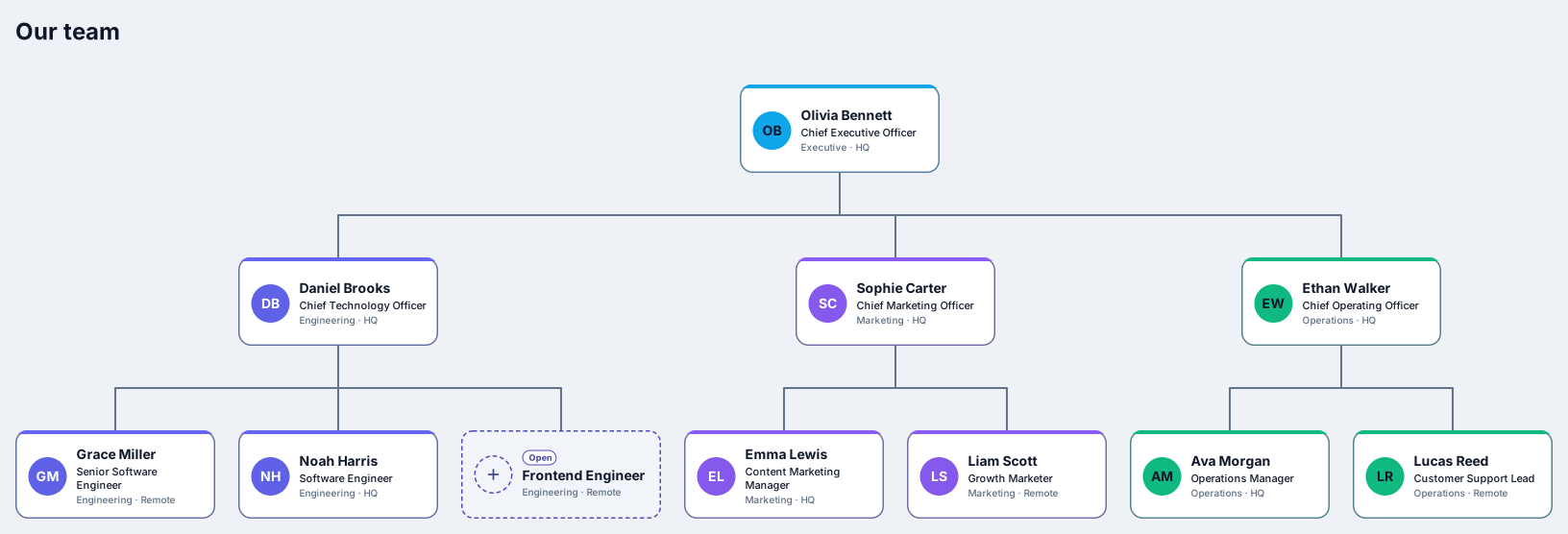
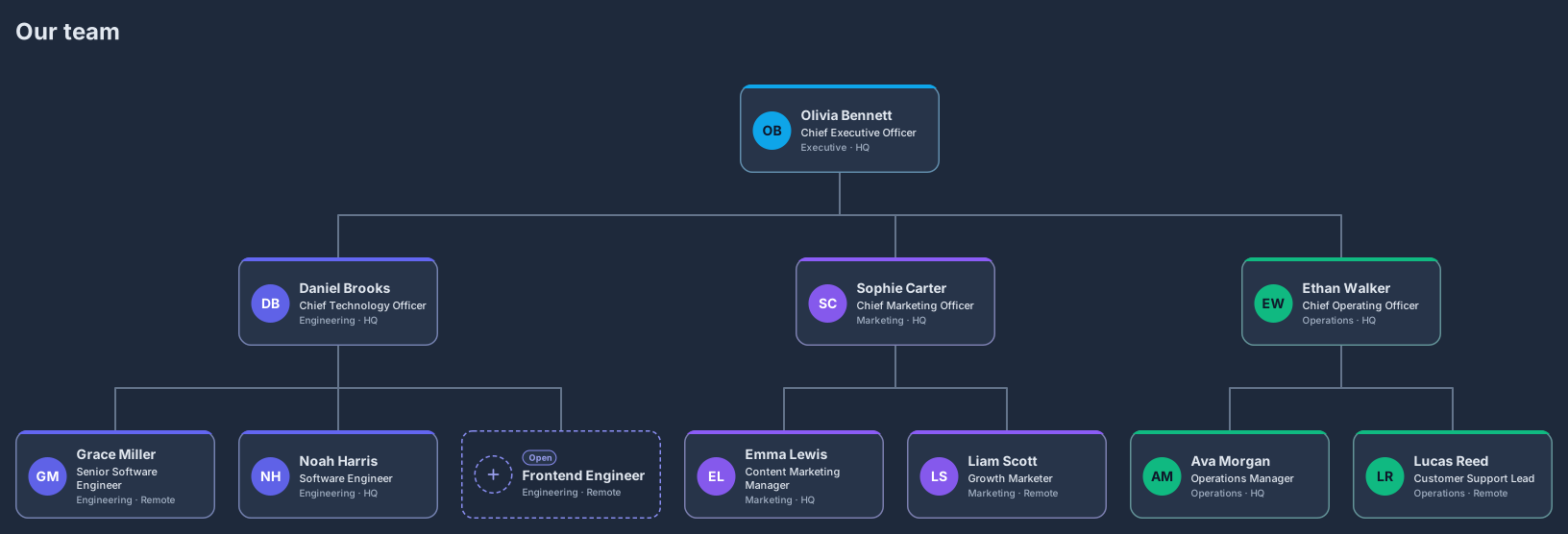
Org chart
The Org chart template opens a small company that is already laid out: a CEO, three department heads, six team members, and one open position. Replace the sample people with your own and add new reports with the plus handles.
Opens an editable copy in your workspace. New to Archboard? Sign in with Google or GitHub and the copy opens right after.
An org chart that keeps itself in order
Most org charts are drawn once in a slide or a generic diagram tool, and every reorganisation after that means dragging boxes, re-routing lines, and fixing the spacing by hand. A month later the chart is out of date, because updating it is a chore nobody owns. An org chart on a hosted canvas works differently. Each person is a card with a name, a title, a department, and a location, and the reporting lines are real connections between the cards. The chart lays itself out from top to bottom: add someone, move them to a new manager, or remove a role, and the tree re-arranges in one step that you can undo.
Building the chart is quick. Select a person and use the plus handles to add a report below, a peer beside, or a manager above; drag a card onto someone else to change who they report to, and their own team moves with them. Departments get their own colors, and open positions appear as dashed cards marked Open, so the gaps in the team are as visible as the people. When someone also works for a second manager, draw a connection from that manager and it becomes a dotted line that stays out of the main tree, so the layout keeps one clear chain of command. When a manager has many direct reports, switch the chart to the compact layout to keep it narrow.
From one team to the whole organisation
An org chart is most useful next to the work it explains. Keep it on the same canvas as the cross-functional flow that shows which team hands what to whom, or beside the meeting notes of the team it describes. Share a branded public link in the onboarding handbook, export SVG or PNG for a slide or an all-hands, and save a revision before each reorganisation so you can compare before and after; Pro adds embed for the company wiki plus watermark-free PDF and JPEG. A Free diagram holds up to 15 people and open positions, which covers a small company or one department; Pro has no node limit, for charts of a whole organisation.
HR teams use it for onboarding handbooks, founders to plan the next hires, managers to explain a new team structure, and consultants to map a client organisation during a project. The names, titles, and departments in the template are written in the language you work in, across all eight interface languages, and every card shows initials instead of a photo, so the chart looks consistent without collecting pictures. Sign in with Google or GitHub, start from the org chart template, and replace the sample company with your own team.
Start from a template
- Org chartA small company already laid out: a CEO, three department heads, their teams, and one open position.
- Cross-functional flowSwimlanes per team, for the process the org chart does not show: who hands what to whom.
- Meeting notesAgenda, decisions, and action items with owners for the team on the chart.
Questions
How do I change who someone reports to?
Drag their card onto the new manager. The reporting line moves, the people who report to them come along, and the chart re-arranges in one step that you can undo.
Can I show open positions and dotted-line reporting?
Yes. Open positions are dashed cards marked Open, so they never rely on color alone. A connection from a second manager to someone who already has a manager becomes a dotted line, and the main reporting tree and its layout stay unchanged.
How many people fit on the Free plan?
A Free diagram holds 15 diagram nodes + 150 notes, text, stickers & mind map topics. Every person and open position is one diagram node, and the template uses 11 of them, so a few more people fit before you need Pro. Pro has no node limit, for charts of a larger organisation.
Open a canvas in a minute
Sign in with Google or GitHub. Free for a single seat. Upgrade when the team joins.