Free tool
GitLab CI visualizer
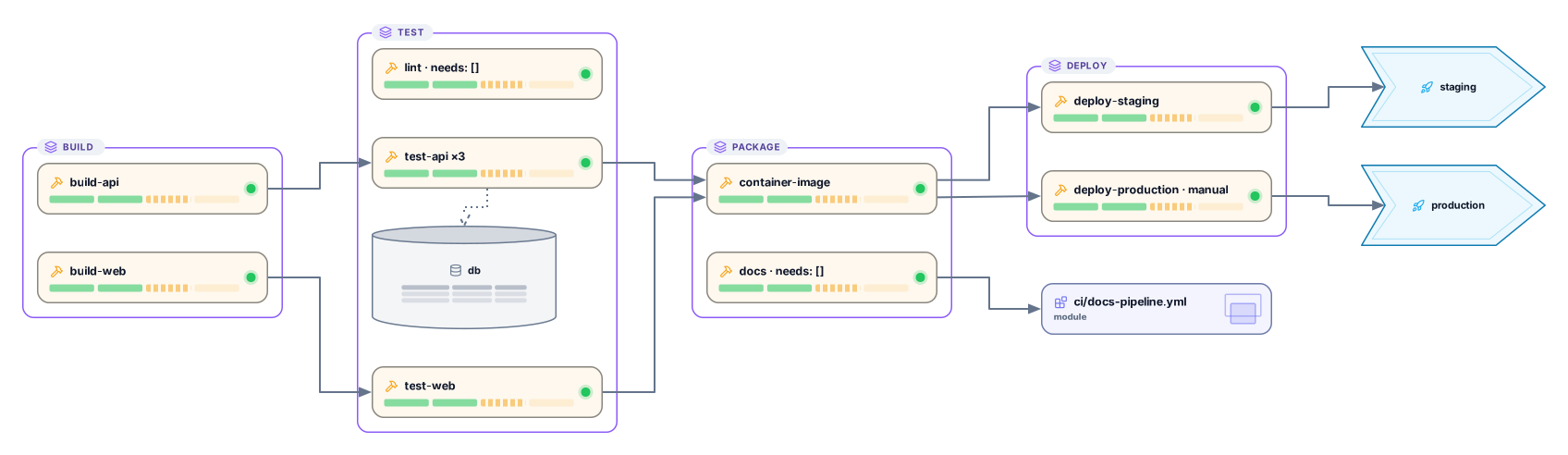
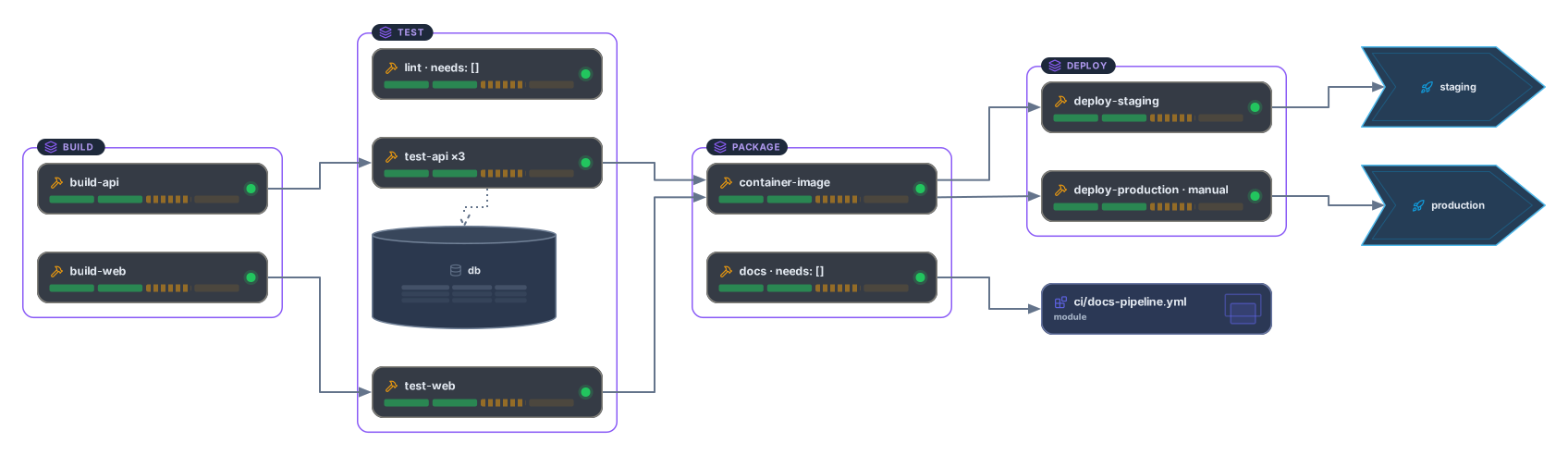
Paste a .gitlab-ci.yml and get an editable GitLab CI pipeline diagram: stages as columns, jobs inside their stage, needs connections that skip ahead, child pipelines and environments. No account needed to try it.
Example output
How it works
Paste or drop .gitlab-ci.yml
The pipeline file from the root of your project. YAML anchors, extends templates and !reference tags are fine, and a CI/CD component spec header at the top is skipped.
See the pipeline
Stages become columns from left to right, every job sits in its stage column, and needs connect the jobs that start before their stage does.
Open it in Archboard
Save it as a new diagram to rearrange jobs, add notes, share a link, or export SVG and PNG. Signing up takes a Google or GitHub account.
What’s drawn from .gitlab-ci.yml
The diagram follows these keywords in your pipeline file:
stagesstageStages as columns in the order of your stages list, or build, test and deploy when there’s no list. A job without a stage goes to test, and stages with no jobs aren’t drawn.
scriptEvery job as a card in its stage column. Keys that start with a dot are templates: they aren’t drawn as jobs, but they still shape the jobs that extend them.
needsneeds: []A connection from each job listed under needs, so jobs that start before their stage stand out. needs: [] marks a job that starts right away. A connection is dashed when the need is optional or the waiting job has rules, only or except.
extendsextends resolved through up to 11 levels of templates, along with YAML anchors and merge keys, so inherited stage, needs, when, parallel, trigger and environment values are drawn.
parallelparallel:matrixparallel: 3 or parallel:matrix keeps the job as one card, marked ×3 or with the number of matrix combinations.
triggerTrigger jobs connected to a card for what they start: the child pipeline file named in trigger: include, or the downstream project in trigger: project.
environmentEach environment, such as review, staging or production, as a card connected from the jobs that deploy to it.
when: manualManual jobs marked · manual, so the approval steps in your pipeline stand out.
What a GitLab CI diagram leaves out
- Configuration pulled in with include, whether local files, other projects, remote URLs, templates or CI/CD components: it isn’t fetched, and jobs that extend a template from those files are listed in the warnings.
- Whether rules, only or except would add or skip a job: they aren’t evaluated, so every job is drawn.
- Variables and their values, scripts, images, caches and artifact paths.
- Pipeline runs: job status, durations, logs and artifacts. The diagram shows the configuration, not a particular run.
GitLab CI visualizer questions
What happens to include?
Included files aren’t fetched, so only the jobs written in the file you paste are drawn. To see the jobs from an included file, paste that file on its own, or combine the files into one before pasting.
Does it resolve extends and hidden jobs?
Yes. extends is merged the way GitLab merges it: hashes are merged deeply and arrays are replaced, through up to 11 levels. Hidden jobs, whose names start with a dot, aren’t drawn but still shape the jobs that extend them. YAML anchors with merge keys work too; !reference tags aren’t resolved.
How are stages and needs shown together?
Stages are columns, so a job’s column shows when it runs by default. A needs connection shows a job that starts as soon as the jobs it lists finish. Without needs, jobs aren’t connected and the columns alone show the order. needs that point to other pipelines or projects are listed in the warnings.
Are child and downstream pipelines drawn?
Yes, as cards. A job with trigger: include points to the child pipeline file, and one with trigger: project points to the downstream project. The jobs inside them aren’t expanded; paste the child pipeline file to draw it.
What happens when I open the diagram in Archboard?
The preview on this page isn’t saved. When you select Open in Archboard, the diagram you see, with its stages, jobs and connections, is saved as a new diagram in your workspace, where you can rearrange, annotate, share or export it. It’s a starting point: later changes to your .gitlab-ci.yml don’t update it.
Is the GitLab CI visualizer free?
Yes. No account is required to paste a pipeline file and view the diagram. Opening it in Archboard takes a free account.
Open a canvas in a minute
Sign in with Google or GitHub. Free for a single seat. Upgrade when the team joins.