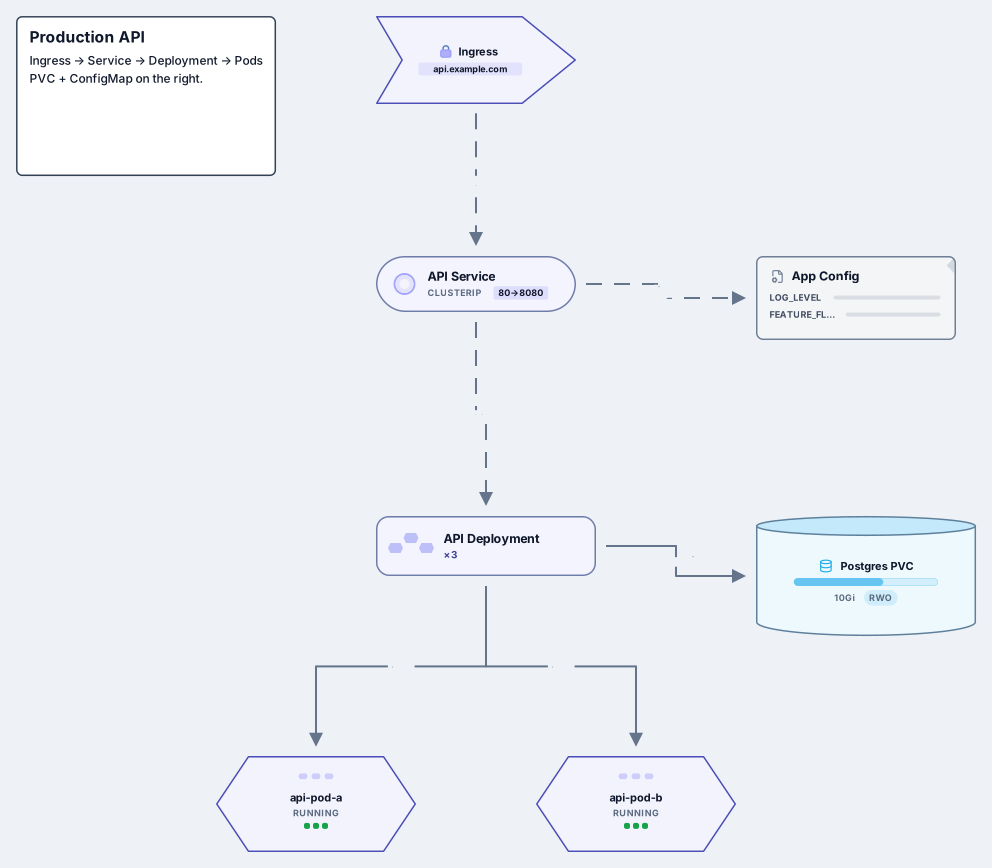
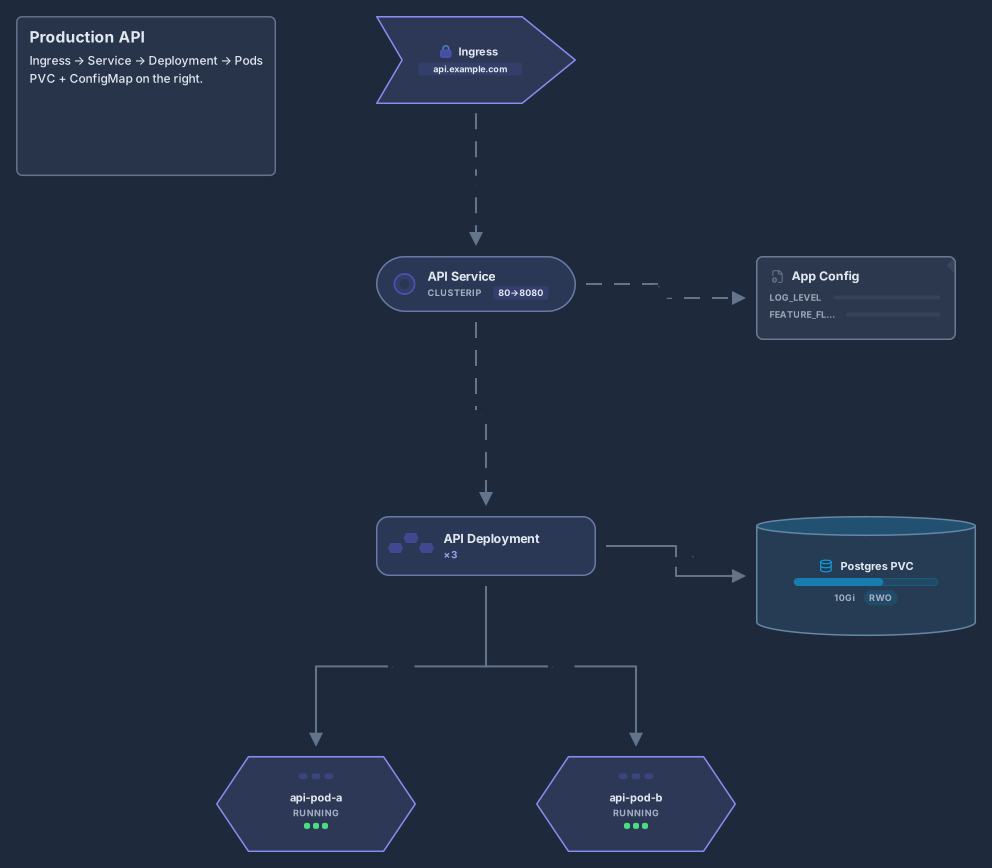
Kubernetes cluster architecture
Control plane, worker nodes, kubelet, kube-proxy, pods and Ingress
14 nodes
- Stack
- Kubernetes
Diagrams from a prompt
Describe your system to your AI agent and it draws an editable architecture diagram on your Archboard canvas: Kubernetes clusters, AWS stacks, C4 containers, microservices and event flows.
Archboard does not run its own AI model. Your AI app connects to Archboard over MCP and draws on your canvas; you edit, share and export the result like any other diagram.
https://getarchboard.app/mcpQuick setup for your app
Opens in a new tabDon’t see your app? Copy the URL above into its connector or MCP settings. It needs OAuth sign-in without a client secret.
Archboard isn’t affiliated with these apps. Names and logos belong to their owners.
After you connect Archboard, paste one of these prompts into your AI app. Each one comes with the kind of diagram it draws: a template built from the same shapes, which you can also open directly.
Prompt
Draw a Kubernetes cluster architecture diagram in Archboard: a control plane with kube-apiserver, etcd, kube-scheduler and kube-controller-manager, two worker nodes that each run kubelet, kube-proxy and a pod, and an Ingress that routes HTTPS to the web pod.
What your agent draws
Control plane, worker nodes, kubelet, kube-proxy, pods and Ingress
14 nodes
Prompt
Create an AWS architecture diagram in Archboard for a three-tier web app: Route 53, CloudFront with AWS WAF, static files in S3, and a VPC with a public subnet for the Application Load Balancer, a private subnet with an EC2 Auto Scaling group and a private data subnet with Multi-AZ RDS and ElastiCache.
What your agent draws
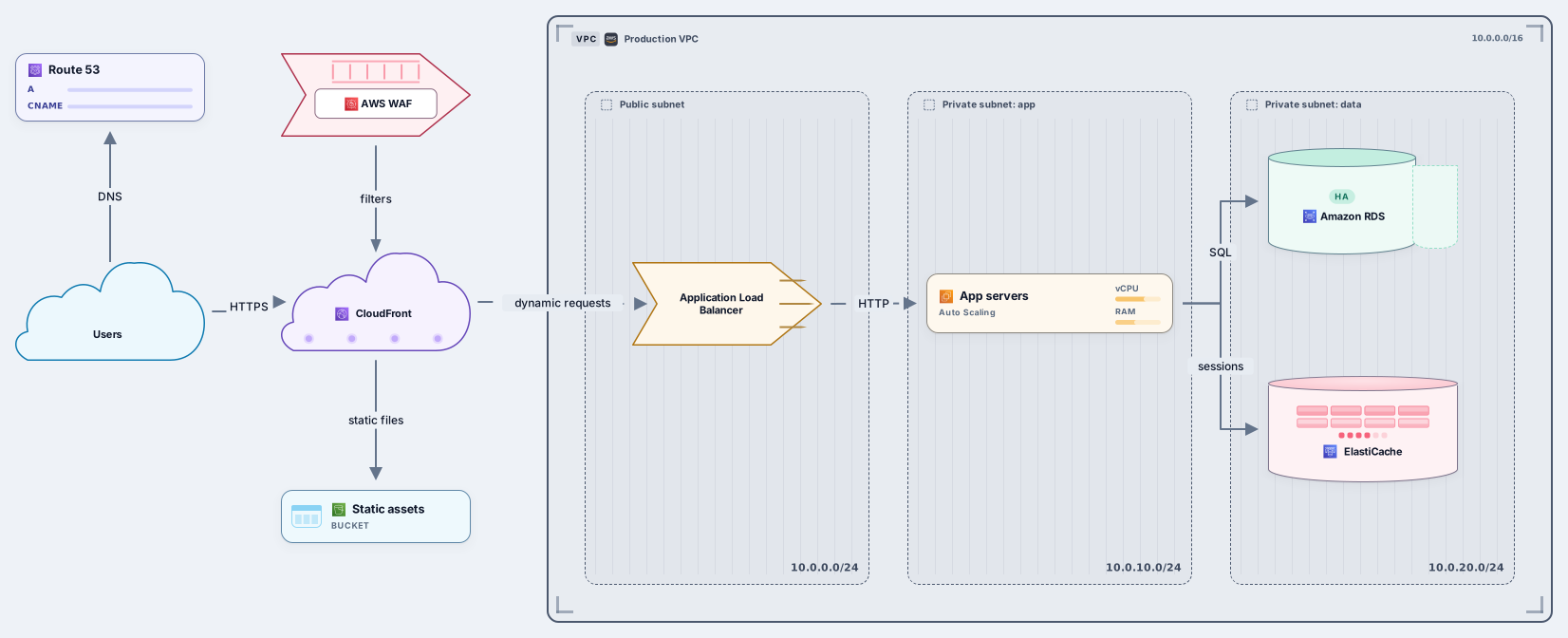
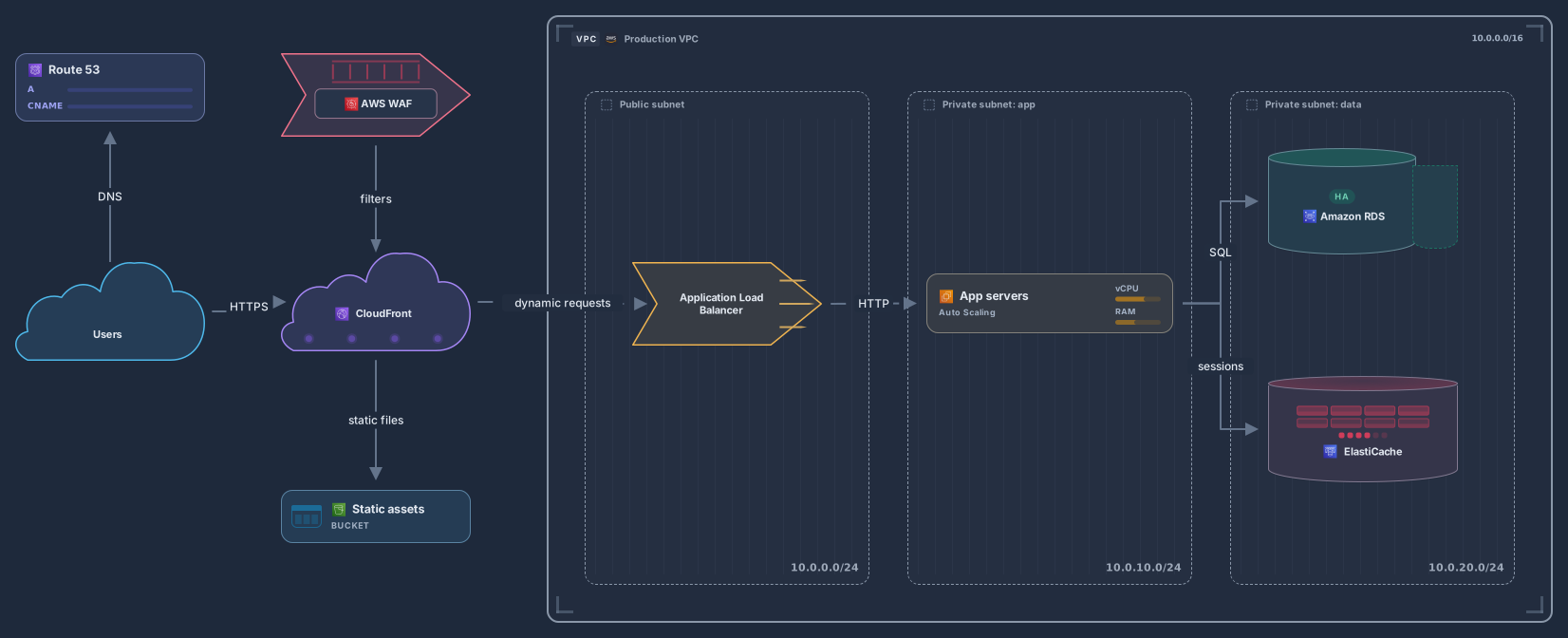
VPC with ALB, EC2 Auto Scaling, RDS, CloudFront and S3
13 nodes
Prompt
Draw a serverless AWS architecture in Archboard: CloudFront and S3 for the front end, Cognito sign-in, API Gateway calling an orders Lambda function that writes to DynamoDB, and an OrderPlaced event from EventBridge to an SQS queue that triggers a worker function sending email with SES.
What your agent draws
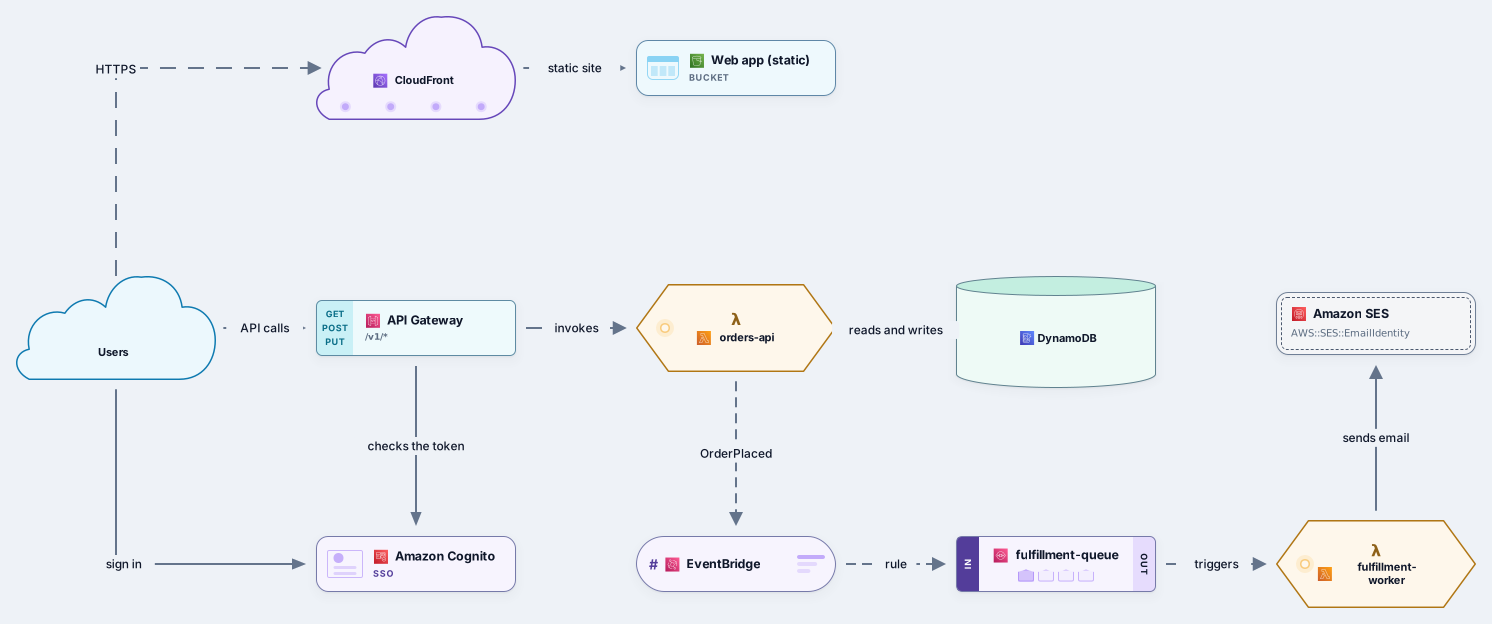
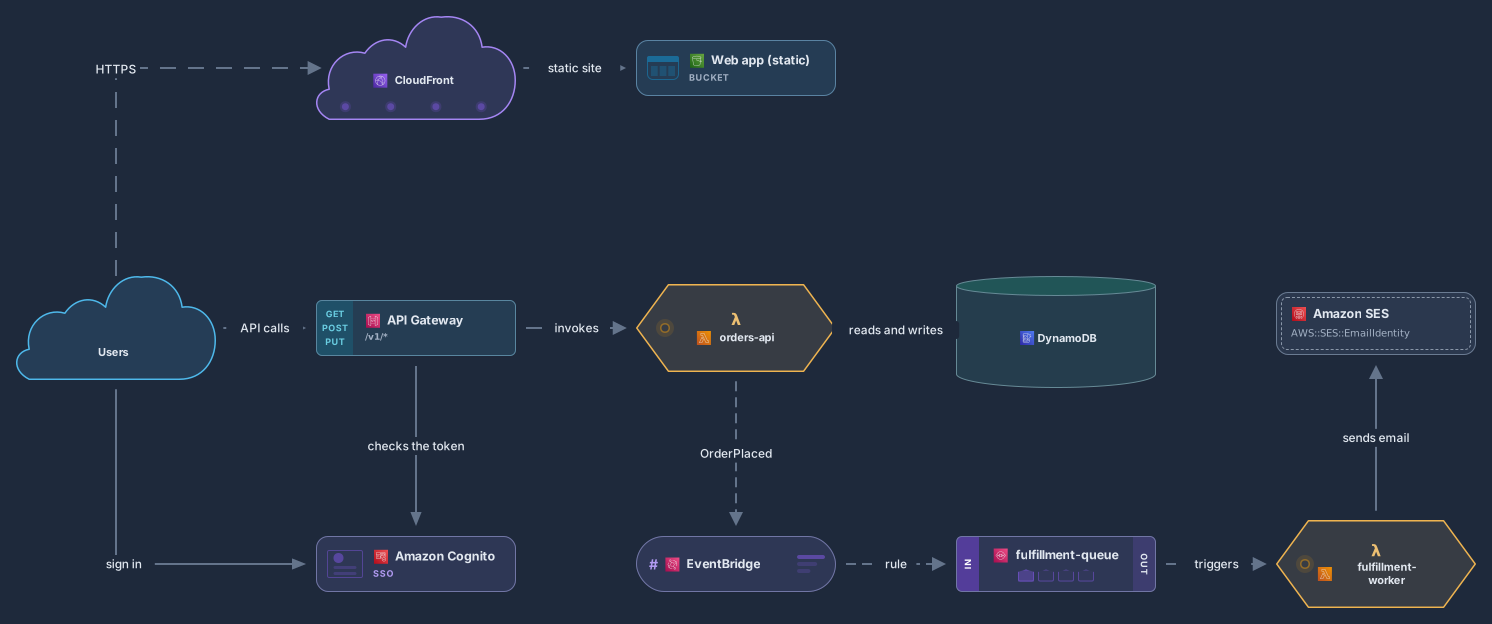
API Gateway, Lambda, DynamoDB, EventBridge, SQS and Cognito
11 nodes
Prompt
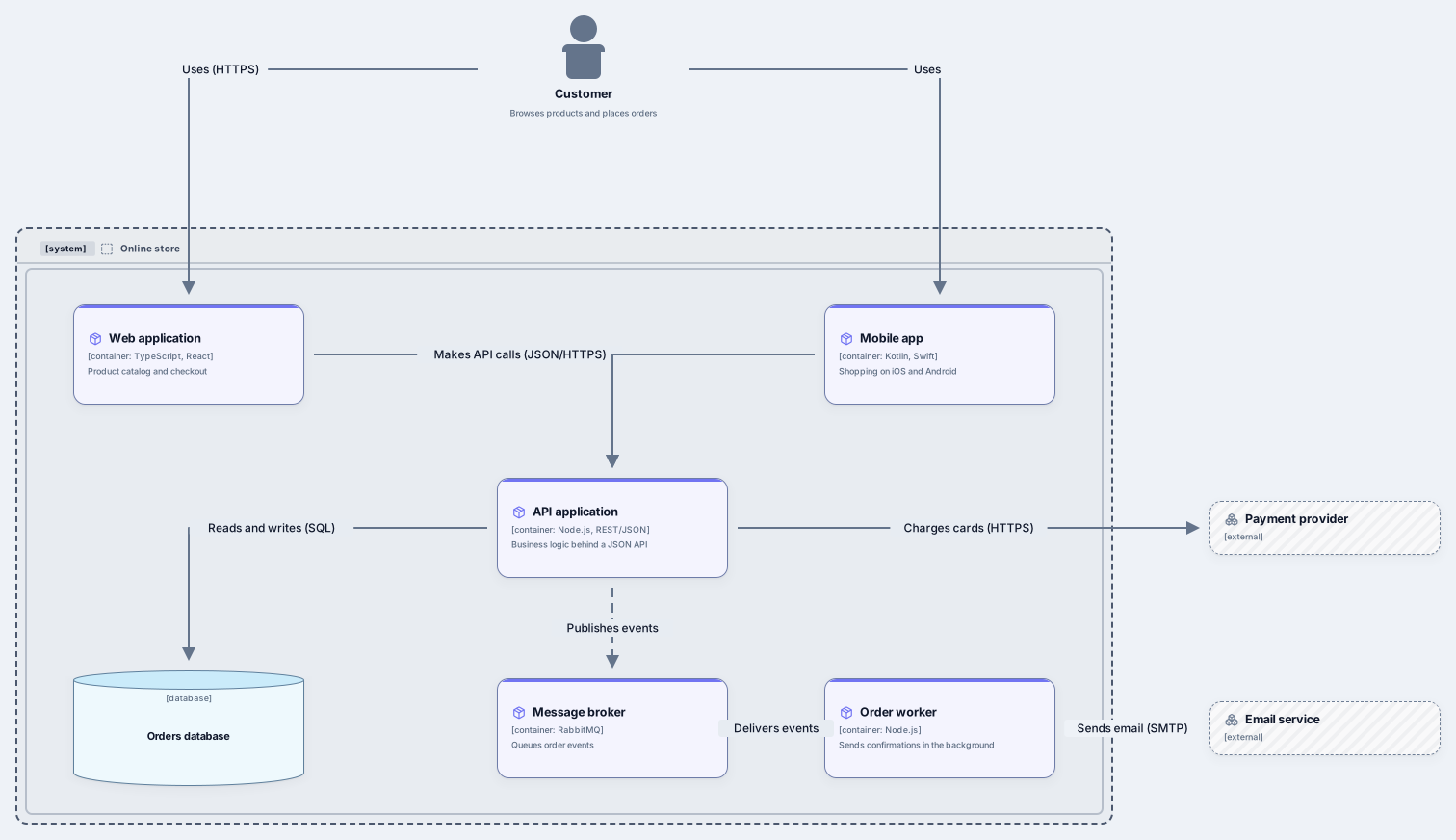
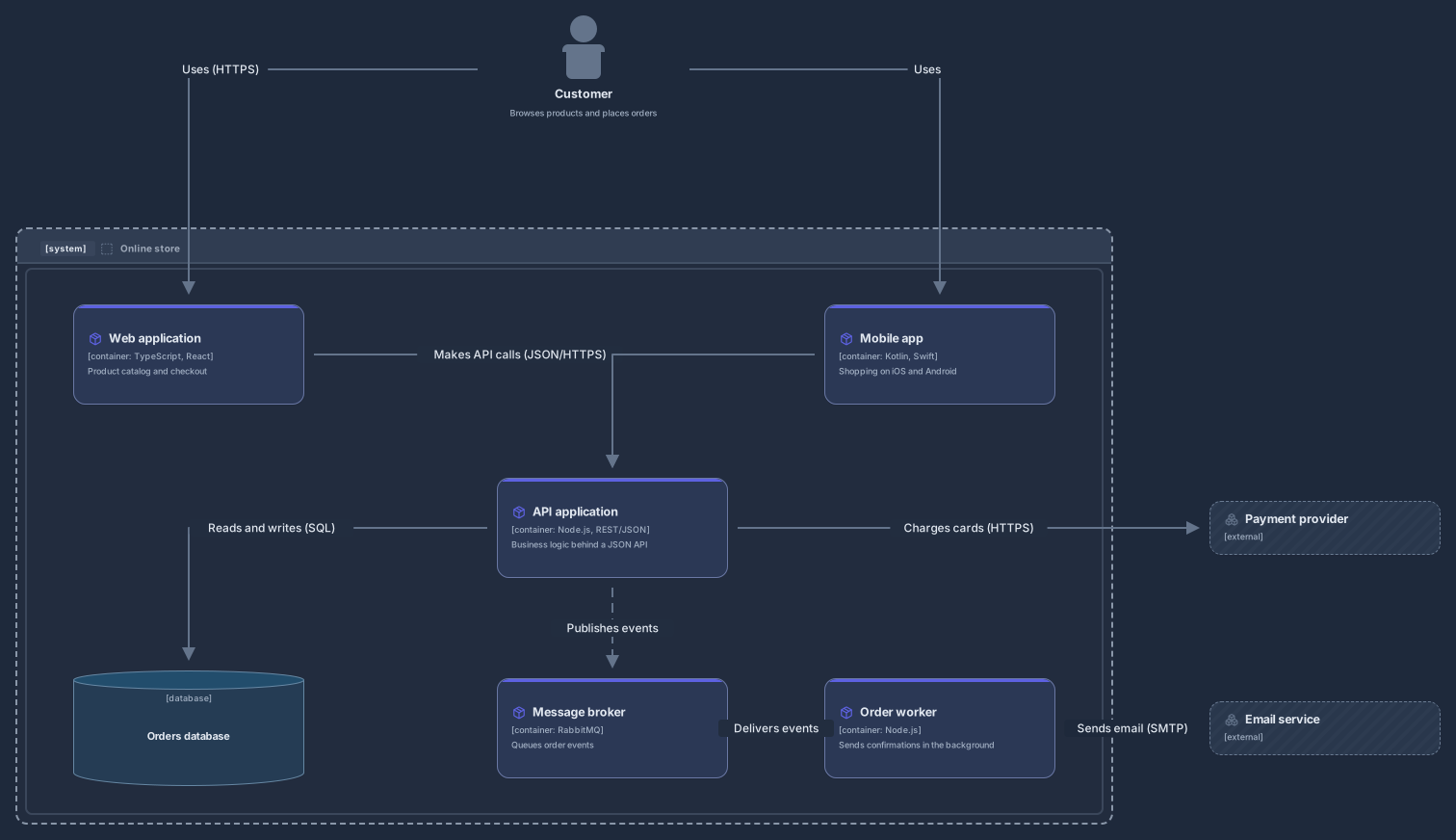
Draw a C4 container diagram in Archboard for an online store: a customer, a web app and a mobile app, an API application, an orders database, a message broker and an order worker inside the system boundary, plus an external payment provider and an email service. Label each relationship with what it does and the protocol.
What your agent draws
Prompt
Draw a microservices architecture in Archboard: web and mobile clients, an API gateway that checks tokens with an identity provider, users, orders, payments and inventory services with their own databases, and an event bus where orders-service publishes OrderPlaced for the payments and inventory services.
What your agent draws
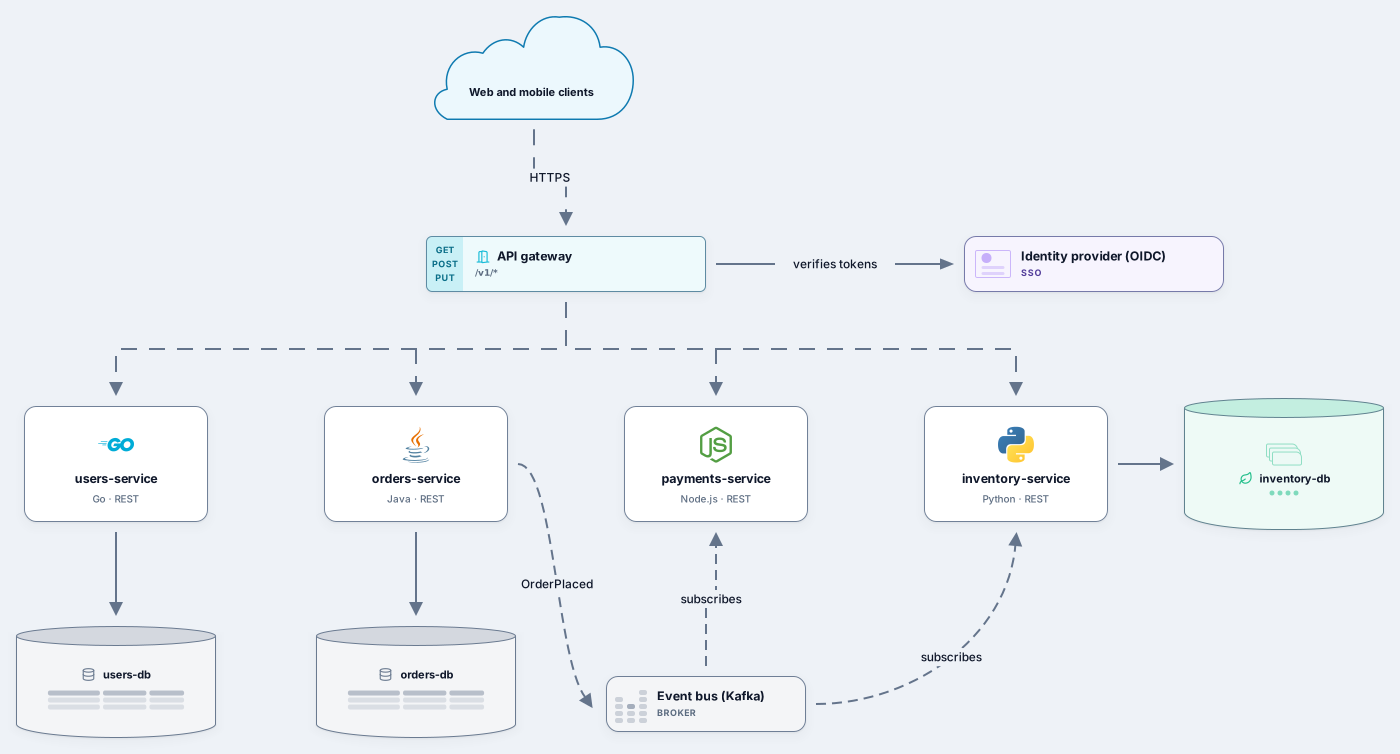
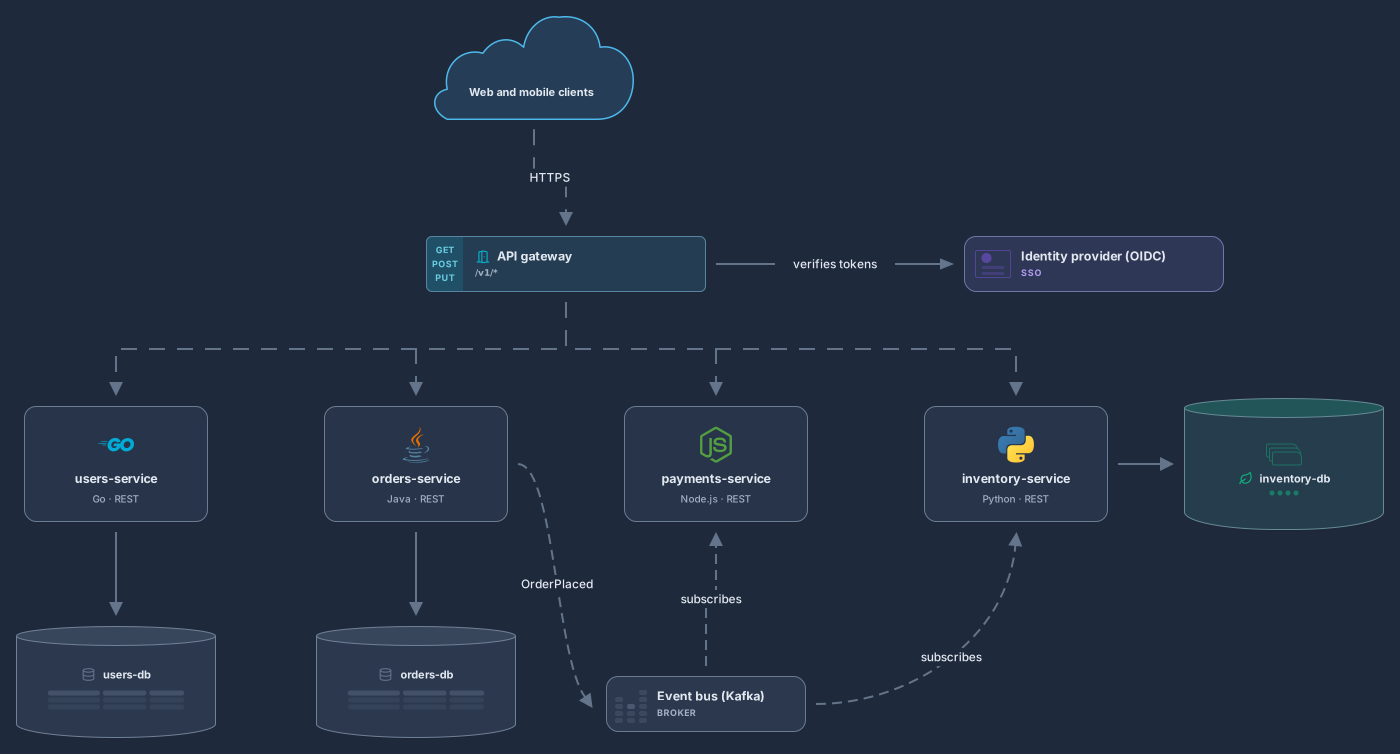
API gateway, four services, a database per service and an event bus
11 nodes
Prompt
Draw an event-driven architecture in Archboard: checkout-service publishes OrderPlaced to an orders topic, payment-service and inventory-service subscribe, payment-service publishes PaymentCaptured to a payments topic for shipping and notifications, with a dead-letter queue and an analytics warehouse.
What your agent draws
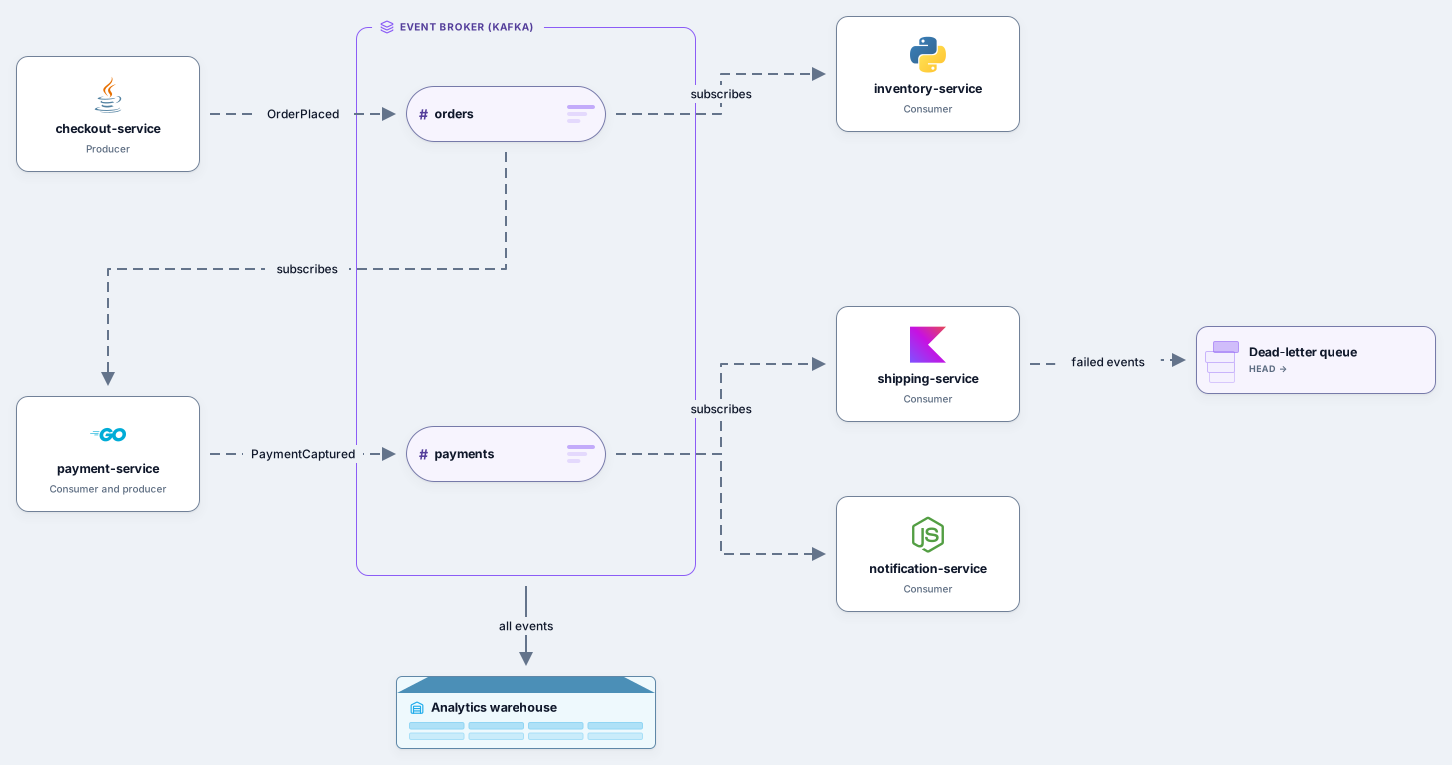
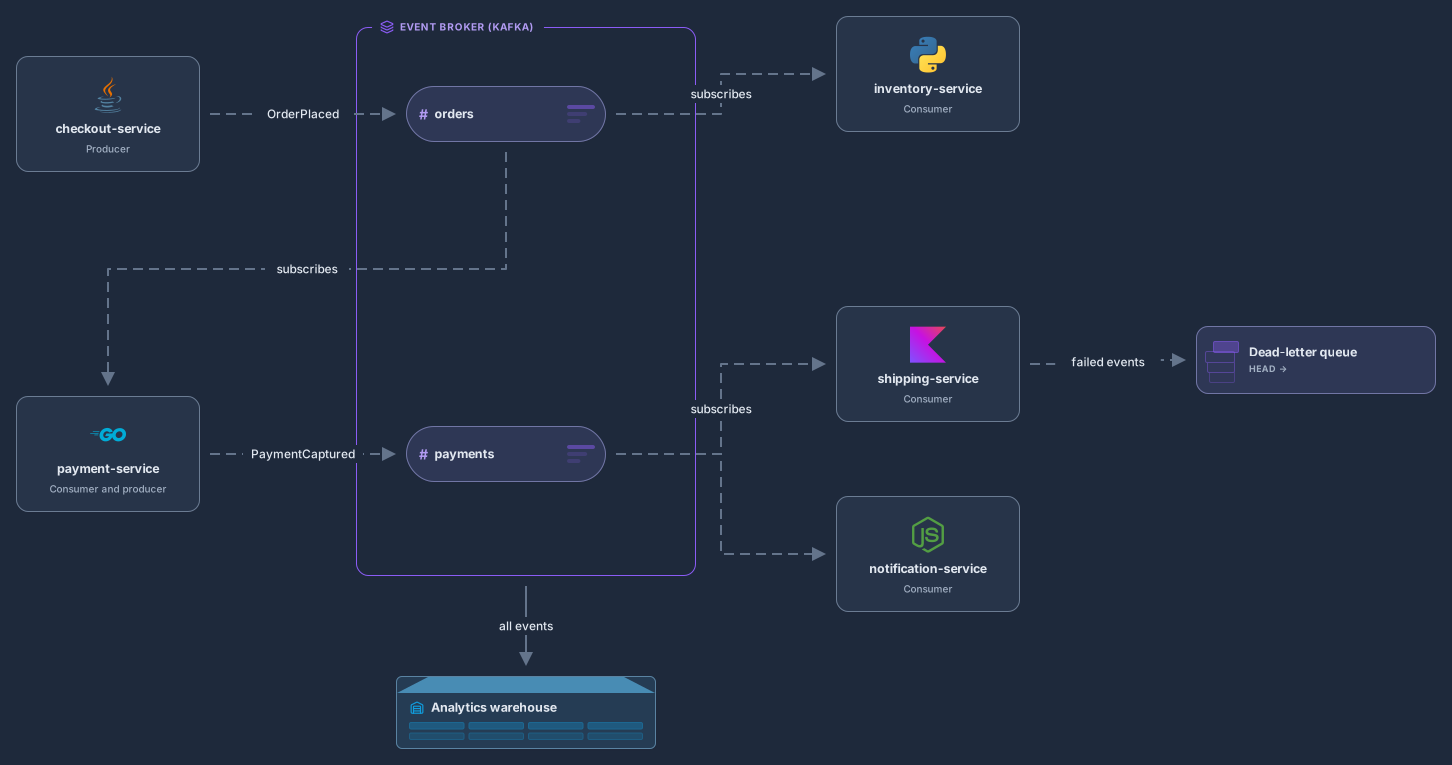
Producers, Kafka topics, consumers, a dead-letter queue and analytics
10 nodes
A scripted demo on the Archboard canvas, with sample names. The agent’s cursor shows who it works for, new shapes appear one by one, and a notice lets you undo your agent’s change in one step.
Add Archboard to your AI app as a remote MCP server, sign in with Google or GitHub and choose what it may use. Then paste a prompt.
In your AI app’s connector or MCP settings, add Archboard as a remote MCP server with this URL. Some apps call it a custom connector.
https://getarchboard.app/mcpYour app opens Archboard. Sign in with Google or GitHub, pick the organizations and workspaces it can use, choose read, edit, or delete for each, and give it a name.
Ask your agent to draw or update a diagram, then open it in Archboard to watch the changes arrive live.
Try asking
Your AI app needs to support remote MCP servers with OAuth sign-in.
The agent adds real nodes and connections to a diagram, not an image. Rename, move, restyle and extend everything it drew, by hand or by asking again.
Kubernetes resources, cloud services, C4 elements and data stores come from the same node packs you use, with fields such as replicas, CIDR ranges and technology.
Edits arrive as they happen, the agent’s cursor shows who it works for, and you can undo your agent’s change in one step.
Share a link, embed the diagram or export SVG, PNG or PDF. Every change is kept in version history.
No. Archboard has no model of its own. Your prompt goes to your AI app, and the app calls Archboard’s MCP server to create and edit the diagram, within the access you approved and your plan limits.
Any AI app that supports remote MCP servers with OAuth sign-in. Shortcuts for popular apps are at the top of this page, and the connection steps work for any other app: add the server URL in the app’s connector or MCP settings.
Yes. Connecting an AI agent works on every plan, including Free, with the same plan limits as the editor. Agent tool calls also have a per-minute rate limit.
Yes. It is a normal Archboard diagram: edit it by hand, ask the agent for changes, or undo your agent’s change in one step. People who have the diagram open see each change live.
Yes. When your AI app connects, Archboard asks you to sign in with Google or GitHub and to choose which organizations and workspaces the app can use, and whether it may read, edit or delete.
Sign in with Google or GitHub. Free for a single seat. Upgrade when the team joins.